


The right laptop for music production runs your DAW, instruments and recording gear reliably through your busiest real session. Test the laptop you own before shopping for another.
If it falls short, compare replacements against your software, recording inputs, sample libraries and need to work away from a power socket, rather than buying to a single headline specification.
Table of content
Introduction
Key Takeaways
Can your current laptop handle your music?
What should you check before buying?
What belongs in your budget besides the laptop?
Connect the laptop and make a test recording
Run one short-song test from recording to export
If the test fails, what should you check?
Check the song and the file before release
Frequently Asked Questions
Conclusion
Key Takeaways
Test your largest real project before replacing a laptop. A troublesome session tells you more than a DAW’s installation minimum.
Check the exact DAW, plug-in and interface versions against the laptop’s operating system and processor before buying.
Prioritise processing capacity, suitable RAM, SSD space and the ports your recording setup needs. Match each upgrade to a problem you actually have.
Record a short overdub, play the busiest passage and listen to an exported file. These checks expose different problems.
Check drivers, monitoring and power before treating clicks or delay as proof that the laptop is inadequate.
Can your current laptop handle your music?
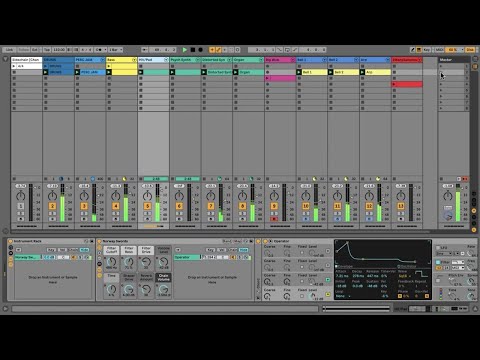
Open your most demanding project, not an empty session. Play its busiest section, then record a short overdub while the other tracks run. Note clicks, delayed monitoring, slow instrument loading and how much free storage remains. Repeat the troublesome passage with a few demanding plug-ins temporarily disabled; if it improves, you have a more specific problem to investigate than simply ‘old laptop’.
Keep the test fair: try the intended audio interface and wired headphones, and check the laptop plugged in as well as on battery. On Windows, power-saving behaviour can reduce CPU performance during intensive Live sessions. A battery-only failure is worth checking before you shop.
What should you check before buying?
A producer arranging short sample-based beats, a singer recording vocals and a composer loading large instrument libraries place different demands on a laptop. Use your busiest likely session to judge the specifications, but check compatibility first.
Software and interface compatibility
Check the precise versions of your DAW and essential plug-ins against the shortlisted operating system and processor architecture. Do the same for the interface manufacturer’s driver, where one is needed. This matters particularly with a used machine or a planned operating-system upgrade. For example, Apple’s current Logic Pro requirements specify macOS 15.6 or later and a Mac with Apple silicon; that does not describe every older version of Logic.
Processing, memory, storage and connections
CPU: Consider how many tracks and real-time effects you run together. A session that fails only when several effects are active points towards processing load, though settings and drivers still need checking. RAM: Allow more room if you keep several sample instruments loaded. Confirm whether the exact laptop configuration permits a later memory upgrade before relying on that plan.
SSD: Leave space for projects, applications and libraries, and consider a suitable external SSD if portable library storage suits your setup. Check the particular model’s internal-storage upgrade options rather than assuming them.
Connections and portability: Count the ports needed for your interface, controller, drive and power connection at the same time. Weigh screen space, adapters, fan noise and sustained plugged-in use against the convenience of a smaller machine.
Ableton describes how CPU, RAM and storage affect Live. Ableton also lists a dedicated GPU as optional for video work; do not put graphics hardware ahead of a music-production bottleneck unless video is part of your workload.
What belongs in your budget besides the laptop?
For software instruments and sample-based work, a compatible laptop, DAW and wired headphones make a sensible starting setup. To record a microphone or an instrument as audio, add an interface with enough inputs for the sources you will record simultaneously, plus the appropriate microphone or instrument connection. If money is tight, reserve enough for that working chain rather than spending the entire budget on a higher laptop tier. The home-recording budget guide helps with those other purchases.
What a minimum does and does not tell you: Ableton lists 8 GB RAM as a minimum for Live 12, but recommends 16 GB or more for typical production, along with a fast SSD. Those figures help compare Live setups; they are not universal laptop requirements or a promise that a particular project will run without dropouts.
Upgrade with a reason: more RAM for the sample instruments you need to keep open, more suitable SSD space for libraries and projects, or stronger sustained processing for sessions that overload after other faults are ruled out. An interface with more inputs is worthwhile when you genuinely need to capture several sources at once, not simply because it is a larger model.
Connect the laptop and make a test recording
Know which path you are testing. A MIDI controller sends performance instructions to a software instrument on the laptop; you hear the instrument through your chosen audio output. A microphone or electric instrument sends audio into an interface, then the DAW records it; the interface can return playback to wired headphones or monitors. An interface can also offer direct monitoring and multiple inputs and outputs. In Live, select the interface as the audio device and configure the inputs and outputs you need.
Install the DAW and any compatible interface driver required for your system. Connect the interface and plug wired headphones into the output you intend to use.
Select the intended audio input and output device in the DAW and enable the interface inputs you need. In Live, select CoreAudio on Mac or ASIO on Windows; other DAWs may use different labels.
Set the intended recording sample rate, choose the correct track input, and record a few seconds. Adjust input gain so the loudest performance does not clip, then play the recording back through the intended headphones.
While overdubbing, try a responsive buffer setting and listen for delay and crackles. If playback breaks up, raise the buffer incrementally and replay the demanding passage. A smaller buffer reduces monitoring delay but increases processing pressure; there is no setting that guarantees both low latency and stable playback in every session.
Hearing two vocals? If your interface supports direct monitoring and you use it to hear the incoming vocal, turn off monitoring on that recording track in the DAW. Otherwise you may hear the direct voice and a delayed software copy together. You will not hear DAW insert effects on the direct signal.
Run one short-song test from recording to export
Try this illustrative project on the laptop you have or, where possible, on a shortlisted replacement. Its parts are a test workload, not a prescribed song arrangement or a guaranteed performance benchmark.
Build and save: Put a short drum part, bass and software-instrument part in a named project folder. Save, close and reopen the project. Note whether instruments and samples load promptly and whether every sound returns.
Overdub: Record a vocal over the parts through the interface. Listen for distracting timing delay, a doubled voice and fan or room noise in a quiet phrase. Correct the monitoring route before judging the laptop’s power; record the quiet phrase again if unwanted noise reaches the microphone.
Stress the busiest passage: Add a few effects and play the section where all parts overlap. If it crackles, adjust the buffer, then bypass demanding effects one at a time. Once you identify a processing-heavy track, temporarily render it if your DAW permits, keeping an editable version. In Live 12, Performance Impact indicators can help locate that track.
Check outside the DAW: Make a rough mix and export a stereo listening reference. Play the file from beginning to end away from the project. If the vocal is buried or a section is missing, fix the session or export range, then export again. This separates a playback problem inside the DAW from a fault in the file you intend to share.

If the test fails, what should you check?
Delayed performance: Check the selected audio device and buffer, then try interface direct monitoring if available. Use wired headphones for timing-sensitive overdubs; Apple warns that Bluetooth listening adds latency in Logic Pro.
Clicks or missing audio: Replay the fault at a higher buffer. Check interface drivers or firmware, cables, adapters and ports; where possible, compare playback through built-in audio. These are diagnostic tests, not proof of a faulty component.
Slow loading or full storage: Check available space and where sample libraries live. Compare loading from the intended SSD before paying for more processing power. Missing samples after a transfer: Gather the project’s referenced audio before moving the whole folder. In Live, Collect All and Save copies used media, but not third-party plug-ins.
Check the song and the file before release
A session that plays correctly is not yet a checked delivery file. Keep the editable project and any listening preview distinct from the full-length stereo file you plan to deliver; individual stems are separate exports for a different purpose.
Listen through the arrangement for missing parts, unwanted noise, clipping and an abrupt ending. Fix those problems in the project first. Then export the intended full-length stereo lossless file at its native project settings. Include the end of any audible reverb or effect tail, since a short bounce range can cut tails off.
Replay the exported file from start to finish, including its final seconds. Check the requirements of your actual distributor before choosing a delivery format. Spotify’s audio guidance asks for a native-resolution stereo master; DistroKid’s upload rules are provider-specific rather than a rule for every distributor.
Preserve the project, its required media and a separate backup. Once the mix is checked, use the mastering guide for that next task and the single release checklist for release planning.
Frequently Asked Questions
Do I need a new laptop to start making music?
No. If your current machine supports your chosen software and can complete a short project without persistent faults, start there. Test a larger real session before deciding that a replacement would solve a specific limitation.
Is 8 GB RAM enough for music production?
It may be enough for a modest compatible session, but it is not a general buying target. Ableton lists 8 GB as Live 12’s minimum and recommends 16 GB or more for typical production. Check your own DAW and loaded instruments, particularly if the laptop’s memory cannot be upgraded later.
Do I need an audio interface to make beats?
Not necessarily. You can begin with software instruments and samples using a compatible laptop, DAW and listening output. Add an interface when you need appropriate connections for recording microphones or instruments, more inputs, or its monitoring options. For fuller recording technique, see how to record music.
Should I choose a Mac or a Windows laptop?
Choose the system that supports the DAW, plug-ins and interface you intend to use, then compare laptops that meet your connection and workload needs. If your choice depends on Mac software, the Mac production-software guide covers that separate decision.
Conclusion
Run the short-song test on your current laptop first. If it passes, keep making music; if it does not, identify the fault and shortlist only laptops that support your exact software and recording chain while addressing the limitation you found.
Subscribe to our newsletter
Stay updated with the latest Muso news, tips, and success stories. Subscribe to our newsletter and never miss an update!


